Put Superhuman Calendar on your Home Screen and see your day in motion while you're on the go.
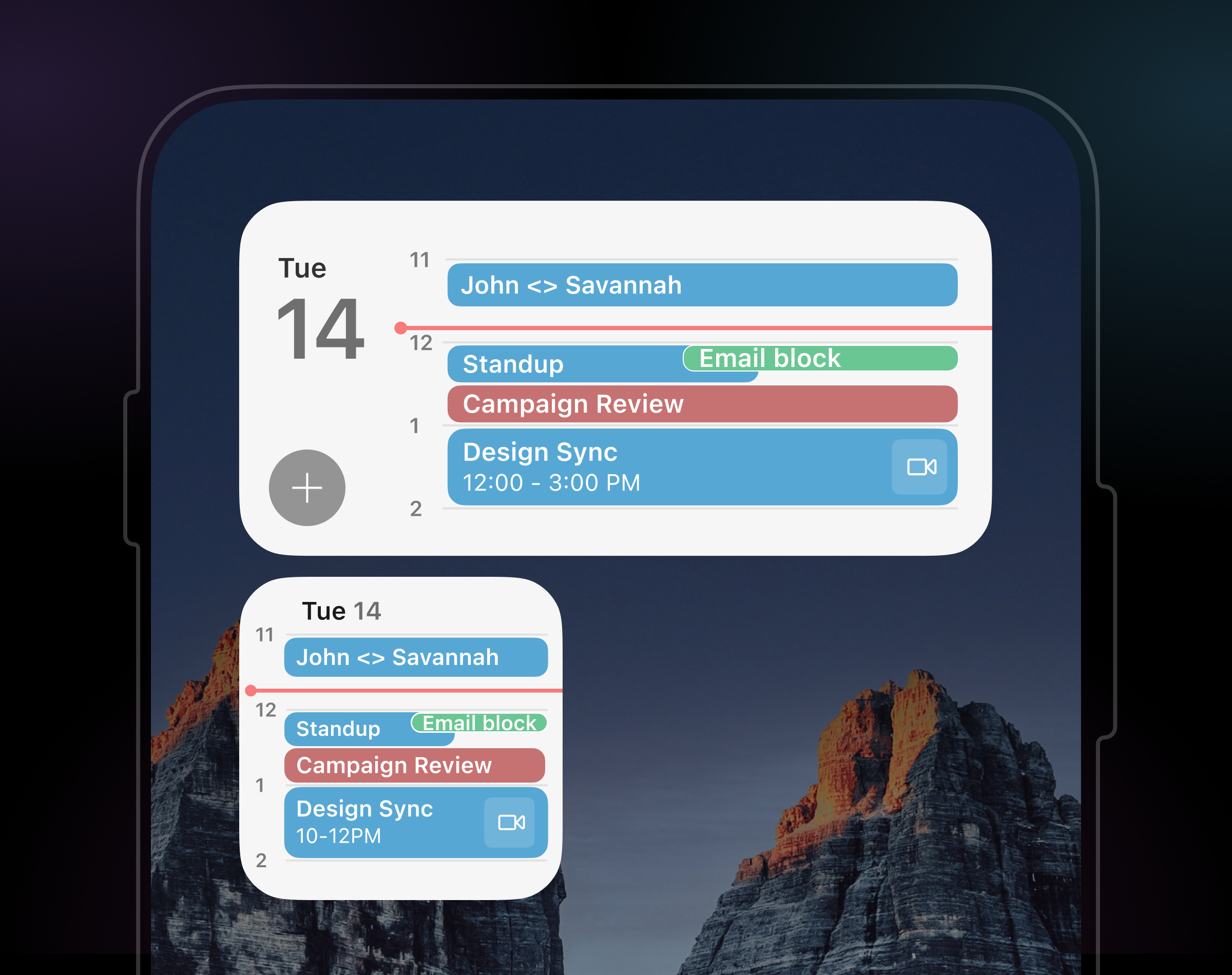
The widget shows a live timeline with events scaled to real time and a red line that tracks exactly where you are, so you can quickly see what’s left and where your gaps actually are. From there, take action in a single tap — open events, join meetings, or jump straight into your calendar.
Note: Requires iOS 18.1 or later.
Add Widget to Home Screen
There are two ways to add the Superhuman Calendar widget on iOS:
- Long-press the Superhuman app icon and choose a widget size.
- Note: This does not work if Mail is in your locked bottom navigation bar.
- Long-press an empty space on your Home Screen, tap Edit (top left) → Add Widget → choose Superhuman → select your preferred size.
Choose Your Widget
Mail offers two view types:
- Agenda shows a clean, stacked list of your upcoming events. This is great for lighter calendars and simple daily lists.

- Timeline shows your day with events scaled to their actual duration and a live red “now” line that updates automatically. It’s built for busy, dense calendars where you not only need to see what’s next, but exactly where you stand in your day.

The five available sizes are:
- Small Agenda

- Small Timeline

- Medium Agenda

- Medium Timeline

- Large Timeline

Widget Details
Once added, your widget shows upcoming calendar events from all Google and Outlook calendars connected to Mail. It stays up to date throughout the day — you'll see what's coming up next when your schedule clears, what's ahead when today's events end, and a prompt to sign back in if you're logged out.
Widget Actions
Right from the widget, you can take action without fully opening the Superhuman Mail app:
- Tap ➕ to quickly create a new event. This opens Superhuman Mail to complete the event (available on Medium and Large widgets only).
- Tap any event to open and view its details.
- Tap the meeting link icon (when available) to join a Zoom, Google Meet, or Teams call instantly.
- Tap any empty space to open your calendar in Superhuman Mail.
FAQs
Can I create events from the widget?
On Medium and Large widgets, tap ➕ to create a new event — this will take you to Superhuman Mail to complete it. Creating events directly within the widget isn't available just yet.
Can I edit events from the widget?
At the moment, you can't edit events from the widget directly, but tapping any event opens it in Superhuman Mail, where you can make changes.
Why is tomorrow showing in my widget?
Once you've reached the end of today's events, the widget shows what's coming up next — like tomorrow's schedule — so you can stay ahead.
Why are some events missing from my widget?
The widget shows events from the calendars you’ve connected in Mail. If something's missing, check that the right calendars are enabled in your settings.
Why does the widget show a sign-in screen?
This usually means you're signed out of Mail. Once you sign back in, the widget will update.
Why isn’t my widget updating?
Widget refresh frequency is managed by iOS. Your widget will update each time you tap and open it, with up to approximately 70 automatic updates per day — prioritized during your working hours.
Can I add this to my lock screen?
Lock screen widgets aren't available yet. The Superhuman Calendar widget is currently available for your Home Screen only.
What iOS version do I need?
The Superhuman Calendar widget requires iOS 18.1 or later.